
Setup
How to add Smart Variant Table in the Shopify theme editor
After installing Smart Variant Table, you can add the app block directly inside Shopify's Online Store theme editor. This is useful when you want the variant table to appear inside the product information area on your product page template.
Before you start
Make sure Smart Variant Table is installed on your Shopify store. You should also open the theme you want to edit, especially if your live theme and draft theme are different.
This guide is for Shopify Online Store themes where app blocks can be added from the theme editor. If your theme is heavily customized, the block may still need a quick preview check before publishing.
Step 1: Open the product page template
From Shopify admin, go to Online Store, open your theme, and choose Customize. In the theme editor, switch to a product page template so you can edit the product information section.
Step 2: Add the app block
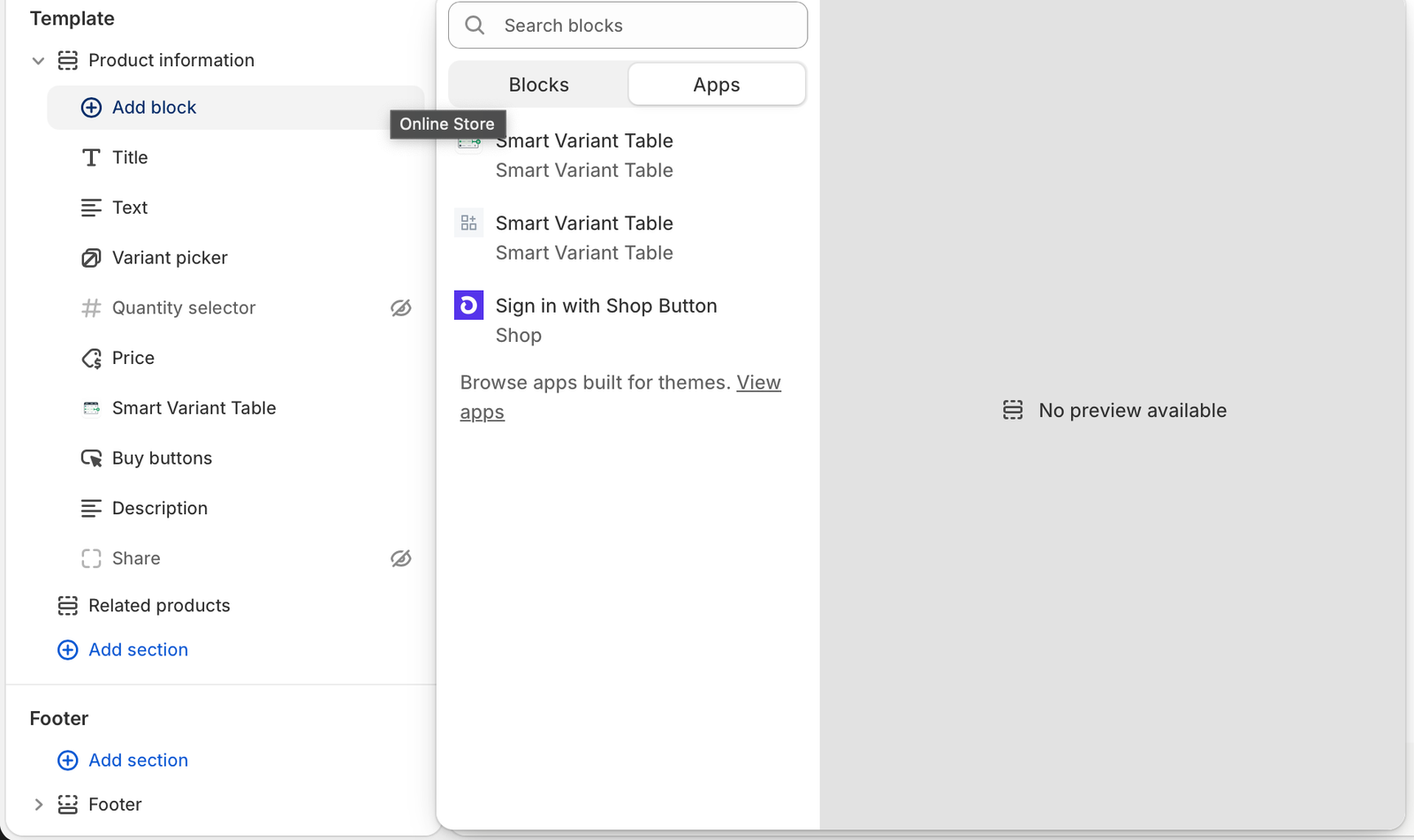
In the left panel, open Product information and click Add block. In the block drawer, choose the Apps tab and select Smart Variant Table.
The screenshot above shows the Smart Variant Table app block available in the Apps tab. Once added, it appears inside the product information list with your title, text, variant picker, price, buy buttons, and description blocks.
Step 3: Place the table in the right position
Move the Smart Variant Table block near the buying controls. Most stores place it around the variant picker, quantity selector, price, or buy buttons. The best position depends on whether you want the table to replace the normal picker or support it.
Step 4: Hide duplicate native controls if needed
If the default variant picker, quantity selector, or buy buttons are still visible and make the page feel duplicated, use the Smart Variant Table settings to hide native controls. This keeps the product page focused on one clear buying flow.
Step 5: Save and preview
Click Save, then preview a product with multiple variants. Check that the table loads correctly, variants are visible, quantity controls work, and the add-to-cart flow behaves the way you expect.
After placing the block, continue with the Free plan setup video to enable the app, update its labels, remove duplicate controls, and test the storefront.
Quick setup checklist
- Open Shopify theme editor from Online Store.
- Switch to the product page template.
- Open Product information and click Add block.
- Choose Apps, then Smart Variant Table.
- Move the block near the product buying area.
- Hide duplicate Shopify controls if needed.
- Preview and test variant selection before publishing.
Add a no-code variant table to your product page
Use Smart Variant Table to show product variants, stock, pricing, and quantity controls from your Shopify product page theme editor.